इसी page पर local test
WebGL 2 mushroom scene, controls, metrics और report यहीं रहते हैं—कोई redirect, iframe, download या third-party benchmark site नहीं।
Local WebGL 2 · कोई download नहीं · Score on Start
Colorful Volume Shader scene यहीं चलाएँ। Real frame preload होकर still रह सकता है; hover पर full-quality slow spin, drag तेज़ control, और timed score के लिए Start दबाएँ।
Preview और scoring दोनों इसी page के local WebGL 2 renderer से चलते हैं। Start timed score शुरू करता है; Stop scored run बंद करके downloadable session report खोलता है।Fair comparison setups देखें
मुख्य features
Renderer, controls, live measurements और report इसी page पर चलते हैं। Third-party frame या redirect नहीं—preview, Start scoring और Stop सब इसी site पर आपके control में रहते हैं।
WebGL 2 mushroom scene, controls, metrics और report यहीं रहते हैं—कोई redirect, iframe, download या third-party benchmark site नहीं।
Hover पर full-quality preview और slow spin। Drag से तेज़ घुमाएँ, scroll/pinch से zoom—timed test जैसा ही renderer।
WebGL 2 support वाले phone, tablet, laptop या desktop पर यही local renderer चलाएँ।
खुलने पर real still frame preload हो सकता है। Continuous scoring केवल Start से। Stop timed run बंद करता है और result local रखता है।
यह क्या है
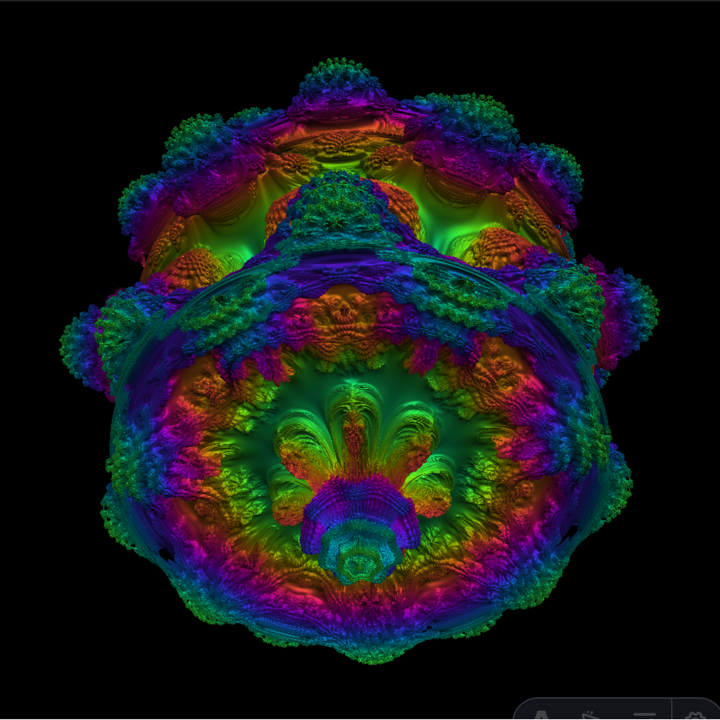
Volume Shader BM उन browser GPU tests का popular नाम है जो fragment-shader math और repeated ray marching से changing volumetric scene बनाते हैं। BM का मतलब benchmark है। यह implementation colorful mushroom-like field render करके अपने frame loop को directly measure करता है।
Browser GPU tests अलग shader, resolution, timer और scoring rule इस्तेमाल कर सकते हैं। यह page अपने renderer को directly measure करता है, इसलिए FPS और score केवल इसी workload के result हैं।
इस benchmark को JavaScript, canvas और working WebGL 2 context चाहिए। नए phone और PC browsers पर यह चल सकता है, लेकिन managed device, disabled acceleration, old driver या strict browser setting blank scene या shader failure दे सकती है। Support मिलना fast rendering की guarantee नहीं है।
दूसरे checks के लिए GPU test tools hub देखें, या full scene load करने से पहलेWebGL capability checker खोलें। Checker केवल API availability बताता है, full benchmark का FPS नहीं।
| Tool type | Install | मुख्य signal | सही उपयोग |
|---|---|---|---|
| यह browser benchmark | नहीं | Live FPS और local score | Quick same-tool comparison |
| Other web benchmark | नहीं | Site-specific FPS या score | उस implementation के अंदर comparison |
| Native GPU suite | जरूरी | कई standardized workloads | Detailed hardware comparison |
कैसे चलाएँ
Real scene preview करें, full-quality interact करें, फिर timed score के लिए Start दबाएँ। Stop scored run बंद करता है, continuous load फिर freeze करता है, और local session report खोलता है।
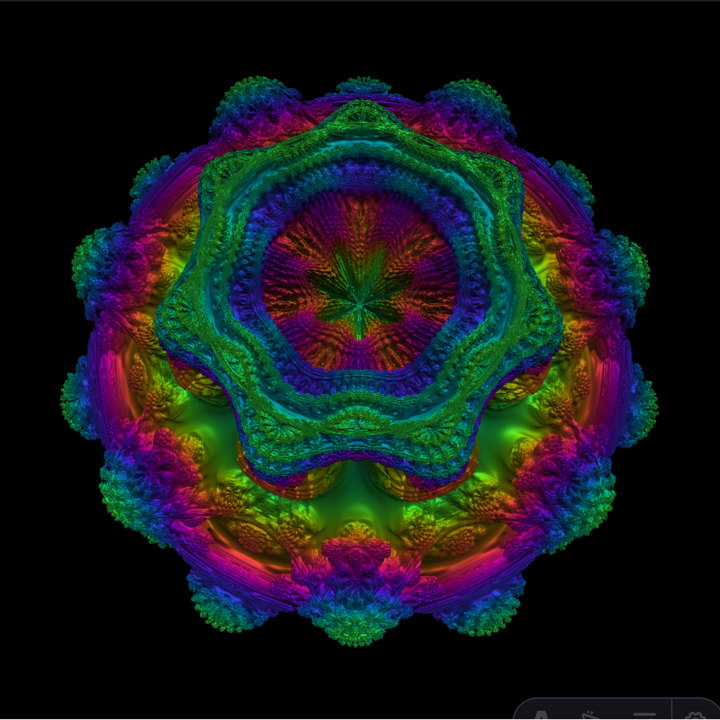
Page खुलने के बाद real WebGL mushroom frame preload होकर still रह सकता है—fake photo नहीं।
Hover पर full-quality slow spin, drag से तेज़ control, scroll/pinch से zoom। Fair comparison के लिए view और browser matched रखें।
Start timed scored run (तेज़ auto-spin) शुरू करता है। Stop से average, min, max FPS, duration, score और device report local मिलता है।
इसे क्यों चुनें
FPS, frame time और duration उसी loop से आते हैं जो इसी page पर scene draw करता है।
Stop animation frame cancel करता है, program delete करता है और WebGL context loss request करता है।
Idle still frame रखता है; hover/drag full-quality preview है; Start scored run है। Device गर्म या slow होने पर Stop दबाएँ।
Report locally बनता है और benchmark data submit किए बिना copy या download किया जा सकता है।
Pro tips
यह page continuous interactive workload देता है, hardware certification नहीं। Start से पहले तय करें कि क्या observe करना है, दोनों devices समान तरह तैयार करें और browser या power बदलने वाली हर condition लिखें।
दोनों devices पर यही page खोलें। इसके score को अलग shader या resolution rule वाली site से compare न करें।
Orientation, browser viewport, zoom, rotation और camera distance match करें; view बदलने से visible work बदलता है।
गर्म hardware को ठंडा करें, फिर दोनों devices plug in या दोनों battery पर same saving policy के साथ चलाएँ।
Browser और version लिखें। Shader compiler, graphics backend और scheduling browser के अनुसार बदल सकते हैं।
Volume shader test background में चलता न छोड़ें। Stop करें, device recover होने दें और वही procedure दोहराएँ।
Recommended setups
Current version में Light, Standard, Heavy या Extreme modes नहीं हैं—एक balanced workload है। Device और सवाल के अनुसार procedure चुनें और observation पूरा होते ही Stop करें। भारतीय गर्म मौसम में charging से गर्म phone पर test शुरू न करें।
Cool phone, closed heavy apps और fixed orientation रखें। Heat या lost touch input दिखते ही test रोकें।
Launcher खोलेंAC और battery को अलग runs मानें। Browser, viewport, camera, starting temperature और background work fixed रखें।
Launcher खोलेंSame browser version और window size रखें, same view बनाएँ और smoothness observe या externally measure करने का तरीका लिखें।
Launcher खोलेंDefault shader पहले save करें। CONFIG का हर edit custom experiment बनाता है; उसे default VSBM result न कहें।
Launcher खोलेंFAQ
Local renderer, phone use, FPS scoring, code provenance, safety और fair comparison के सीधे जवाब।
Volume shader test fragment-shader calculations और continuously rendered volumetric scene वाला browser graphics workload है। यह tool ray marching से sustained GPU work बनाता है, लेकिन hardware certification या complete benchmark suite नहीं है।
BM का मतलब benchmark है। Volume Shader BM, volumeshader_bm और VSBM इस तरह के browser GPU tests के common search terms हैं। अलग sites अलग shader, resolution और score इस्तेमाल करती हैं, इसलिए result केवल same tool में compare करें।
नहीं। Canvas, WebGL 2 shader, controls, live measurements और report इसी page पर चलते हैं। यह किसी दूसरी benchmark website को embed या redirect नहीं करता।
हाँ, यदि mobile browser WebGL 2 चला सके। Heavy apps बंद करें, गर्म phone पर test शुरू न करें और touch response खराब होते ही Stop दबाएँ। Result browser, temperature, Battery Saver और viewport से बदल सकता है।
FPS इसी page के completed render frames से सीधे count होता है। Local score average FPS × 100 है। यह इसी tool के repeated runs के लिए useful है, किसी अलग benchmark score से compare नहीं करना चाहिए।
Universal good score नहीं है, क्योंकि viewport, browser, power mode, temperature और refresh rate result बदलते हैं। Same browser, viewport, camera, power state और starting temperature में compare करें।
Slow या frozen volume shader test का मतलब workload current browser के लिए बहुत heavy हो सकता है, device throttle कर सकता है या WebGL acceleration unavailable हो सकती है। Black frame shader compilation failure से भी आ सकता है। Stop करें, device ठंडा करें और WebGL capability tool जाँचें।
Short browser test healthy hardware को नुकसान नहीं पहुँचाना चाहिए, लेकिन continuous shader power use, heat, fan speed और input lag बढ़ा सकता है। Device protection throttle या test terminate कर सकती है। असामान्य गर्मी या instability पर तुरंत Stop करें।
Benchmark report किसी result collector, account या leaderboard पर submit नहीं होती। PageView traffic analytics और Microsoft Clarity interaction analytics Privacy Policy में बताए अनुसार अलग से काम करते हैं।
Publicly viewable source automatically open source नहीं होता। Related repositories commercial copying rights देने वाला license declare नहीं करते और competitor terms reverse engineering रोकते हैं। इसलिए यह renderer independently implement किया गया है।
Browsers अलग WebGL implementations, shader compilers, graphics backends, frame scheduling और power policies इस्तेमाल कर सकते हैं। Same GPU पर browser बदलने से experience बदल सकता है, इसलिए cross-browser run hardware के साथ browser stack को भी measure करता है।
यही page, same browser version, viewport, camera position, zoom, power state और starting temperature रखें। Background GPU work बंद करें, समान duration चलाएँ और final report का average FPS या score compare करें।
Test के लिए तैयार
चाहें तो पहले preview करें, timed scored run के लिए तभी Start दबाएँ जब ready हों। Run छोटा रखें और Stop से scoring बंद करें।
Test launcher पर वापस जाएँ